This guide shows how to use an independent player with TV8Live login details. TV8Live does not develop, distribute or support this software and is not affiliated with its developer: we do not use its logo and we do not offer support for the player itself. For access to the TV8Live service message us on WhatsApp; for player-specific problems contact the developer.
Before you start
SS IPTV has an advantage over the other players: it is already inside your television's firmware, so there is nothing to install. It is the quickest option if you have a recent Samsung Smart TV.
You need
- A Samsung Smart TV with recent firmware
- The television connected to the internet
- Your M3U playlist URL from the TV8Live user area
- A USB keyboard to paste the address
You do not need
- {icon("cross")} Another IPTV subscription
- {icon("cross")} A paid app — players are free
Does your TV run Android TV rather than Tizen? Use Televizo; if it has no modern system at all, the Android guide explains whether you need a TV box.
Step-by-step
- 1
Open the TV's Media menu
Press the remote's menu button and select Media. You should find IPTV or Playlist. On some models it is called «TV Player» or «Media Player».
If none of these exist, your model does not support SS IPTV: use Smart IPTV or Televizo instead.
- 2
Get your playlist URL
Sign in to your TV8Live user area and copy the M3U address from the playlist section. In this guide we call it
YOUR_PLAYLIST_URL. Do not edit it and do not publish it: it contains a subscription identifier.Check you copied the whole address, from the first character to the last.
- 3
Paste the URL into the URL field
In the Playlist menu choose «Add» and paste the address into the URL field. Use the on-screen keyboard or a USB keyboard: typing a long address by hand is the most common cause of failure.
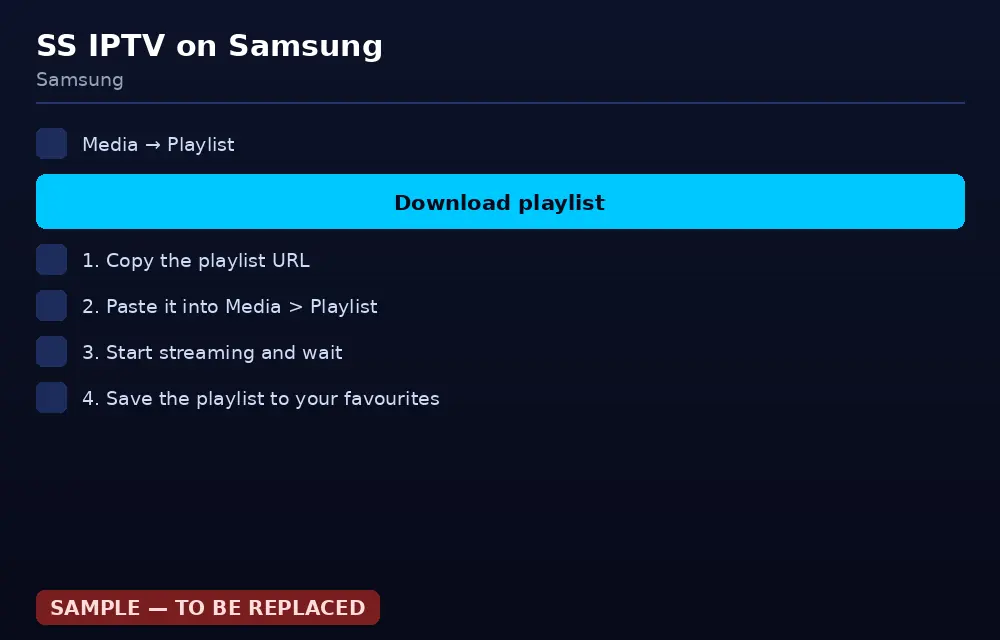
You add the playlist from the TV's Media menu, with nothing to install. - 4
Start the download and wait
Press OK or «Download». The television fetches the playlist: it takes from thirty seconds to a minute. Do not switch the TV off while it downloads, even if it looks stuck.
- 5
Name and save the playlist
When it finishes, your channel names appear. Rename the list to something recognisable, such as «TV8Live», so you can find it immediately next time. Save with OK.
- 6
Start streaming
Reopen the Media menu and select the playlist you just saved. Your channel list appears: pick one and press OK. The first playback loads the channel data and takes a few seconds.
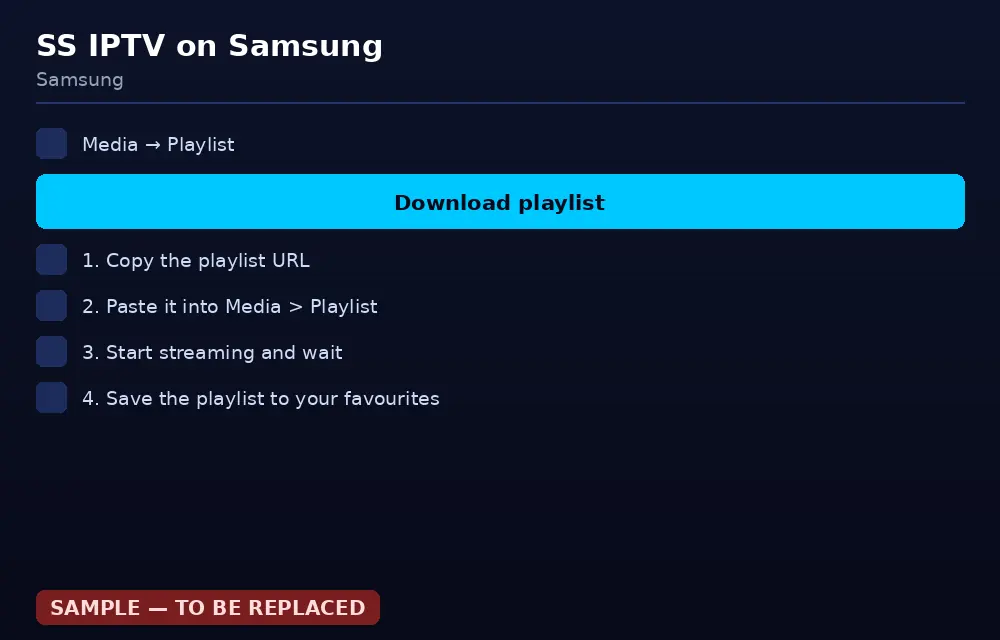
Once saved, the list appears in the Media menu with all your channels. - 7
Save the playlist to favourites
Select it and use «Add to favourites» or «Save». It will then appear on the TV home screen, or in the quick panel reached with the Home button.
Remember to reload the playlist if your subscription changes or expires.
If something goes wrong
Before reinstalling anything, work through this table. Problems are listed from most to least common, and the cause is almost always a typo or the connection rather than your account.
| Problem | Likely cause | What to do |
|---|---|---|
| No «IPTV» in the Media menu | Firmware does not support it | Update the firmware or use Smart IPTV if available. |
| The playlist will not download | URL copied incorrectly | Re-copy the M3U address from your user area, with nothing truncated and no spaces. |
| Empty channel list | Subscription expired or invalid URL | Check your plan expiry date in your TV8Live user area. |
| «Invalid playlist» | URL format not recognised | Check that you copied the whole address, protocol included. |
| Constant buffering | Weak connection | Connect the television with Ethernet instead of Wi-Fi. |
| Audio but no picture | Unsupported video format | Set the TV video output to «compatible». |
| The list disappears after a few days | Playlist not saved to favourites | Save it from the Media menu with «Add to favourites». |
FAQ
What is SS IPTV?
SS IPTV is a player built into many Samsung Smart TVs: you launch it from the menu and it reads an M3U playlist. With TV8Live you do not build the playlist yourself: it is generated from your login details. It is independent third-party software, not affiliated with us.
Where do I find my playlist URL?
In your TV8Live user area, in the «Playlist / M3U» section. The address contains a private part that identifies your subscription: do not share or publish it. In this guide we call it YOUR_PLAYLIST_URL.
Do I need to install anything?
No. SS IPTV is already part of the television's firmware: you launch it from «Media». That is its main advantage over the other options.
Does it work on non-Samsung televisions?
Why does the playlist stop working after a few days?
If your plan has expired, the URL is no longer valid. Check the expiry date in your user area: if the subscription is active and the list is still empty, reload the playlist from the Media menu as described above.
Next step
If you do not have an active subscription yet, the 24-hour €1 trial gives you immediate access with nothing charged required. If you would rather install nothing, the TV8Live online player runs in your browser. For anything else, start with the FAQ.