This guide shows how to use an independent player with TV8Live login details. TV8Live does not develop, distribute or support this software and is not affiliated with its developer: we do not use its logo and we do not offer support for the player itself. For access to the TV8Live service message us on WhatsApp; for player-specific problems contact the developer.
Before you start
Smart IPTV is the best fit for Samsung Tizen televisions, which is most recent Samsung Smart TVs. The procedure is a little longer than others because it has a separate activation stage, but the end result is very stable.
You need
- A Samsung Smart TV running Tizen
- The television connected by Ethernet or Wi-Fi
- A wireless USB keyboard for activation
- A temporary computer to complete activation
You do not need
- {icon("cross")} Another IPTV subscription
- {icon("cross")} A paid app — players are free
Not sure which system your TV runs? The Android guide explains how to find out and what to do in each case.
Step-by-step
- 1
Check that your TV runs Tizen
Open the television settings and look for «Information» or «System». If it says «Tizen» you can carry on. If it is Android TV or a proprietary system, follow the Televizo guide instead; if the TV is very old, consider a TV box — the Android guide explains everything.
- 2
Connect the TV by Ethernet
Smart IPTV activates with the television online. An Ethernet connection is preferable to Wi-Fi: it is more stable and makes activation faster. If you use Wi-Fi, make sure the television is on a stable 2.4 GHz network.
Verify the connection by opening the TV menu and checking the network status.
- 3
Open the television settings
Press the remote's menu button and navigate to Settings › Support › Smart IPTV. Depending on the model the entry may be called «TV Setting» or sit under «Support».
If you cannot find it, your model does not support this application.
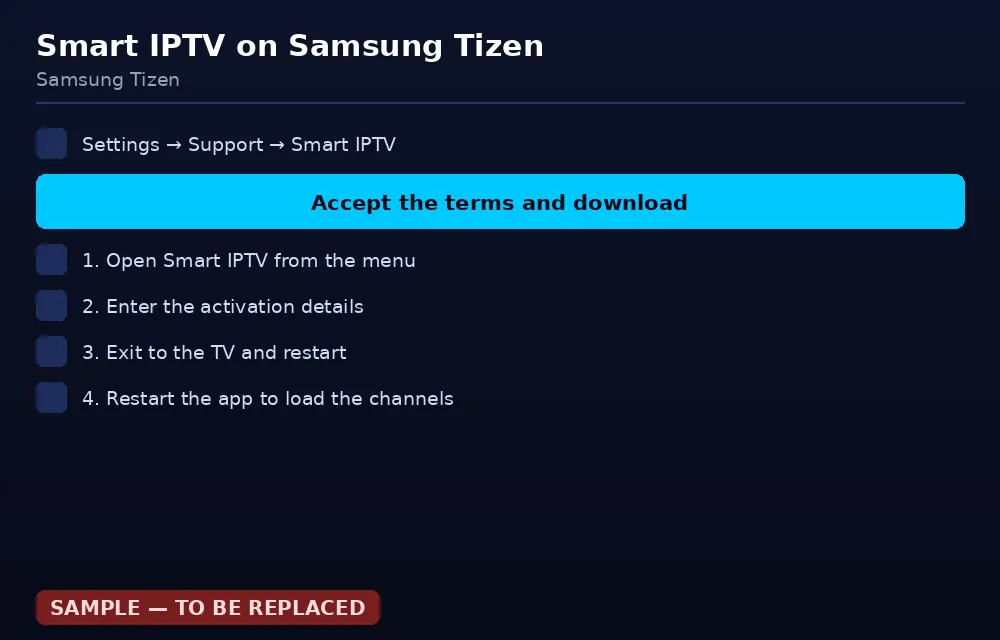
The path varies slightly by model: look under Support or TV Setting. - 4
Accept the terms and start the download
Tick the terms box and press the download button. The app downloads to the television automatically and takes only a moment. No credentials are needed at this stage.
- 5
Register your activation code
When the download finishes the app asks for a code. The login button shows the activation site on screen: type it into a computer browser.
A USB keyboard makes this much easier; without one, some televisions struggle to move focus between fields.
- 6
Enter your TV8Live details on the activation site
Fill in the fields with the details from your subscription. The form may ask for the television's MAC address: you will find it under Settings › Support › Information. Enter it without hyphens or dots.
Press register. Your activation code appears: copy it and go back to the television.
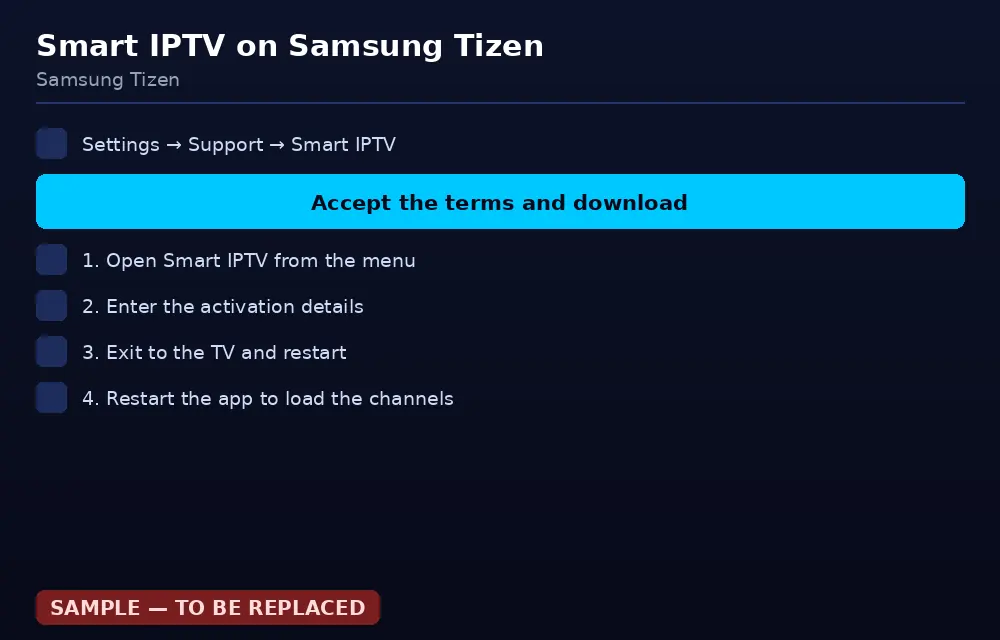
Fill in the activation form with the details you received by email. - 7
Enter the code on the TV and restart
Type the code on the television using the USB keyboard. Once confirmed, the TV downloads your channel list and restarts automatically. This step can take a minute.
- 8
Launch the app and watch
Open Smart IPTV from the television menu: your channel list appears with the electronic guide. Select a channel with the arrow keys and press OK.
The first playback starts downloading the channel data, so a short wait is normal.
If something goes wrong
Before reinstalling anything, work through this table. Problems are listed from most to least common, and the cause is almost always a typo or the connection rather than your account.
| Problem | Likely cause | What to do |
|---|---|---|
| I cannot find the Smart IPTV entry | The TV is not Samsung Tizen | Check the system version under Information. If it is Android TV, use Televizo. |
| Activation code is rejected | Wrong date or time on the television | Set the TV to automatic date and time, then try again. |
| MAC address is not accepted | Typing error | Re-copy it from Information and enter it without hyphens, dots or spaces. |
| The channel list does not appear | The app was not closed properly | Restart the television and reopen the app from the menu. |
| «Not registered» on launch | Registration did not complete | Repeat the activation steps; you may have skipped the final confirmation. |
| Constant buffering | Weak Wi-Fi or the TV is far from the router | Connect the television with an Ethernet cable. |
| Works on the computer but not on the TV | TV does not support the video format | Change the TV video output to «compatible». |
FAQ
What is Smart IPTV and what is it for?
Smart IPTV is a free application for televisions running Tizen, which is most recent Samsung Smart TVs. You install it from the TVBox, register once and then launch it from the TV menu. TV8Live supplies the login details; the application is third-party software and is not affiliated with us.
Why do I need a USB keyboard?
Because activation involves typing a code. Without a keyboard you can use the TV's on-screen keyboard, but it is tedious. A €5 USB keyboard with a 2.4 GHz receiver makes the whole process much faster.
The activation code is not accepted — what now?
Check the television is switched on with the network cable connected and try again. If the error persists, check the television’s date and time: a wrong time makes activation fail. If it still fails, use the online player or follow the IPTV Smarters Pro guide on an Android device.
Is Smart IPTV available on my television?
It works on Samsung televisions with Tizen. If your TV runs Android TV, use Televizo or Facile TV instead. The TV box guide explains how to tell which system your television runs.
Do I have to enter my details again after installing?
No. Once activated, your details stay stored on the television. You will need them again if you ever reinstall the list, so keep the activation email somewhere safe.
Next step
If you do not have an active subscription yet, the 24-hour €1 trial gives you immediate access with nothing charged required. If you would rather install nothing, the TV8Live online player runs in your browser. For anything else, start with the FAQ.