This guide shows how to use an independent player with TV8Live login details. TV8Live does not develop, distribute or support this software and is not affiliated with its developer: we do not use its logo and we do not offer support for the player itself. For access to the TV8Live service message us on WhatsApp; for player-specific problems contact the developer.
Before you start
Before you open the player, make sure you have three things to hand: a Windows computer, an internet connection and your subscription details. If you do not have a subscription yet, the 24-hour €1 trial charges nothing and activates in seconds.
You need
- A Windows 10 or later PC with at least 2 GB of free memory
- A stable connection — 10 Mbps is enough for smooth streaming
- Your three login details from the activation email
You do not need
- {icon("cross")} Another IPTV subscription
- {icon("cross")} A paid app — players are free
If your goal is watching on a television rather than a computer, consider a TV box first: the Android guide explains what to look for.
Step-by-step
- 1
Get your three details from the email
Open the activation email and find the host, username and password. In this guide they appear as
tv8live.com,YOUR_USERNAMEandYOUR_PASSWORD. If the email shows a different host, use exactly what you were given.Do not save your details in a shared text file or a group chat. You only need them during setup and if you reinstall the player later.
- 2
Download the player from an official source
Get the Windows desktop version from the developer's own site or an official distribution channel. Before installing, check the developer name and that the address matches the official site.
Never download from promotional links, generic download sites or ads you see in search results. If the installer asks for extra software, cancel: a media player does not need satellite software.
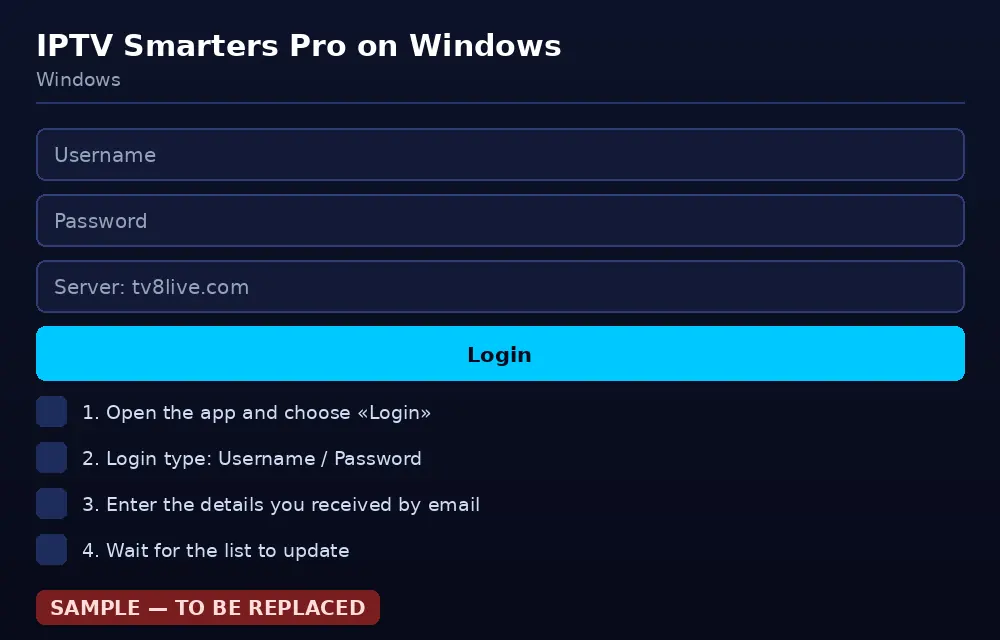
Always check the publisher and the address before running the installer. - 3
Run the installer
Open the downloaded file and follow the prompts. It takes a few seconds and asks for no unusual permissions. If Windows shows a SmartScreen warning, confirm you downloaded from the official site first.
When it finishes, launch the player from the Start menu. The first screen usually offers a username and password login.
- 4
Pick the right login method
On launch the player offers several login methods. For TV8Live choose the one based on username and password: avoid options that ask you to load an M3U file, because your details are managed centrally and there is no playlist for you to load.
- 5
Enter host, username and password
Fill in the three fields from your email. The host is tv8live.com with no
http://and no trailing slash. Paste the password without adding spaces.Some players are case-sensitive: if the login is refused, type it by hand instead of pasting.
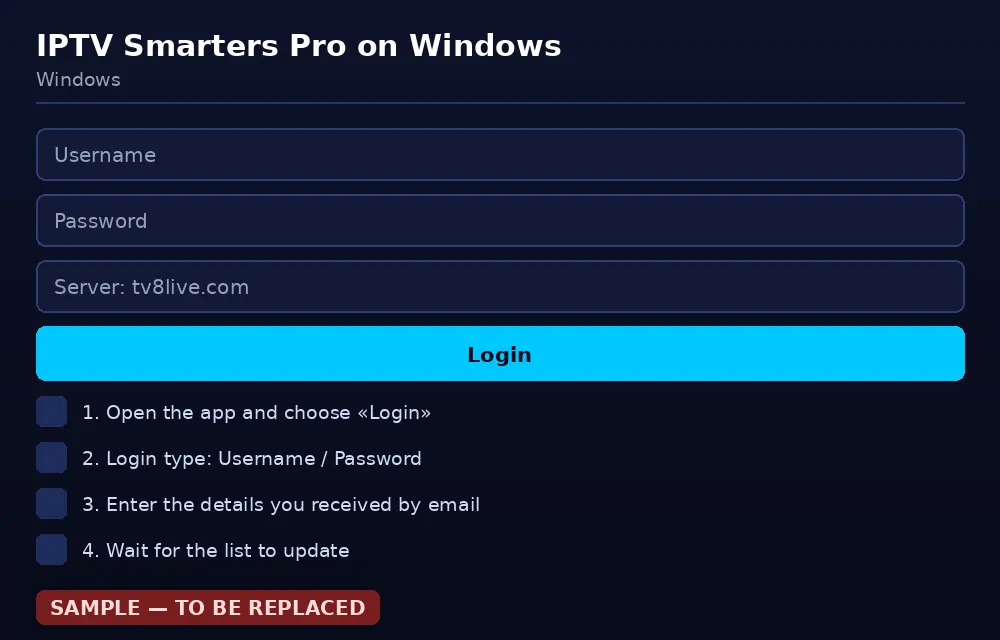
Three fields, no registration: fill them in and press the login button. - 6
Press login and wait for the list to load
On first login the player downloads the catalogue, which can take up to half a minute depending on your connection. Do not close the program while it loads, even if it looks stuck.
- 7
Check the channel list and guide
Once you are in, you will see the channels grouped by category. Open a category and pick a channel to start watching. The electronic guide, when available, shows what is on right now.
- 8
Switch to the television
If you want to watch on the TV, connect the computer with HDMI, select the right input and press F11 for full screen. From then on use the TV remote or the keyboard.
Keep in mind the computer must stay on and the player must stay in front.
If something goes wrong
Before reinstalling anything, work through this table. Problems are listed from most to least common, and the cause is almost always a typo or the connection rather than your account.
| Problem | Likely cause | What to do |
|---|---|---|
| Login rejected | Typo or spaces in the password | Re-copy the three details from the email. The host is tv8live.com, no trailing slash. |
| Logged in but no channels | Account not yet activated, or the list has not loaded | Wait, restart the player, then check your subscription status in your email. |
| Player slow or crashing | Outdated version | Update it from the same official source, restart Windows and retry. |
| Audio but no picture | Video output set to an unsupported format | Change the video output from «automatic» to «compatible». |
| Constant buffering | Insufficient connection | Test your real speed, move closer to the router or switch to Ethernet. |
| No electronic guide | EPG data not available for that channel | Normal for some channels. Reload the list; if it is missing everywhere, ask support to check. |
| Cannot install at all | Untrusted download or unavailable software | Do not use third-party files. Try Televizo or the online player. |
FAQ
What is IPTV Smarters Pro and can I use it with TV8Live?
IPTV Smarters Pro is an independent media player: it contains no channels, it only shows the ones you give it. TV8Live provides the login details for its own service, the player does the rest. There is no relationship between the two: always check where the software comes from before you install it.
Is IPTV Smarters Pro safe on Windows?
Safety depends entirely on where you download it. Use only the developer's own site or a recognisable store, check the publisher before installing, and never accept credential requests in popups that appear at launch. TV8Live does not control the software and cannot vouch for third-party downloads.
Why is my login rejected?
Nine times out of ten it is a typo. Check that the host is tv8live.com with no trailing slash, that the password has no leading or trailing spaces, and that capitalisation matches. If the account has expired or has not been activated yet, the login is refused for that reason too: check the status in your email.
The player crashes or freezes — what now?
That usually happens with very old versions on Windows. Update the player from the same source you installed it from, restart the computer and try again. If it persists, use a lighter player such as Televizo, or watch through the online player with nothing to install.
How do I move from the computer to the TV?
Connect the PC to the television with an HDMI cable, choose the matching input, and the player will show full screen driven by the TV remote or the keyboard media keys. If you hear audio but see no picture, switch the player's video output from automatic to compatible.
Next step
If you do not have an active subscription yet, the 24-hour €1 trial gives you immediate access with nothing charged required. If you would rather install nothing, the TV8Live online player runs in your browser. For anything else, start with the FAQ.