This guide shows how to use an independent player with TV8Live login details. TV8Live does not develop, distribute or support this software and is not affiliated with its developer: we do not use its logo and we do not offer support for the player itself. For access to the TV8Live service message us on WhatsApp; for player-specific problems contact the developer.
Before you start
Kodi is a different choice from the other players in this section: it is not an app for the television, it is a media centre that runs on your computer. It suits you if you want a flexible environment where you can organise the list your own way. If you want the quickest route to the television, start with Televizo.
You need
- A Windows, Linux or macOS computer with Kodi from the official site
- Your playlist URL from the TV8Live user area
- A stable internet connection
You do not need
- {icon("cross")} Another IPTV subscription
- {icon("cross")} A paid app — players are free
For television use, see the Android and TV box guide; for instant access with nothing to install, use the online player.
Step-by-step
- 1
Download Kodi from the official site
Go to the Kodi project site, download the build for your operating system and install it. Do not install Kodi from third-party app stores: rebuilt versions are the most common cause of instability and odd behaviour.
On a Raspberry Pi or another embedded system, follow the project documentation.
- 2
Launch Kodi and choose advanced settings
On first launch Kodi asks which profile to use: choose Expert (or “Advanced” in English) so you can manage video sources.
Some IPTV features require add-ons: when Kodi asks, allow them, but always check the source is the project's official repository.
- 3
Open settings and the file manager
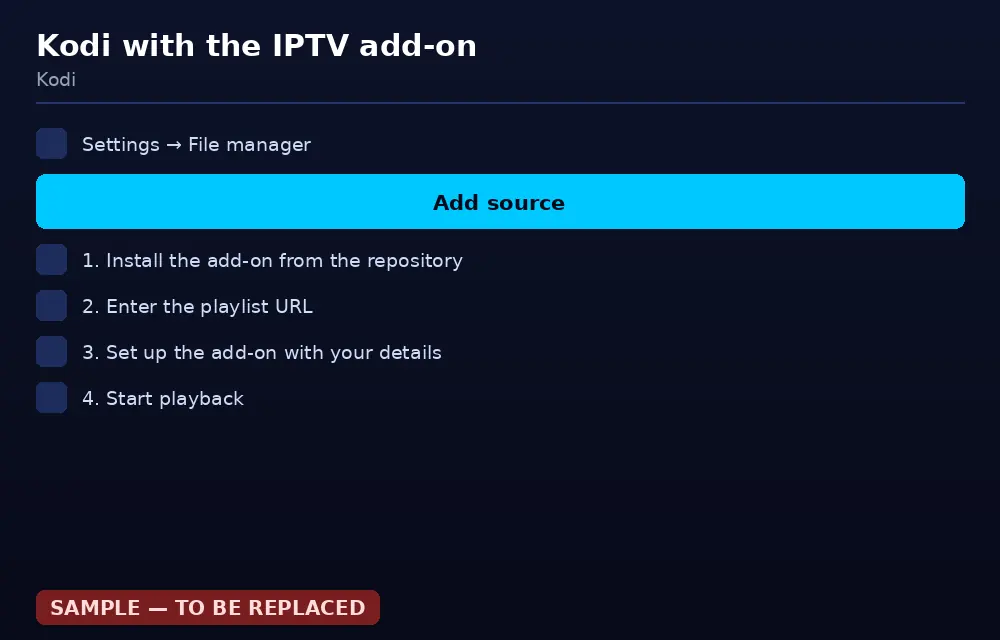
From the home screen select Settings (the gear icon), then File manager. Your video sources are listed on the left.
Settings › File manager gets you to your video sources. - 4
Add the video source
Press «Add source”. In the dialog that appears choose «Add” and paste your TV8Live playlist address. In this guide we call it
YOUR_PLAYLIST_URL.Press OK twice: once to confirm the content type, once to name the source, for example «TV8Live”.
- 5
Start playback from the TV section
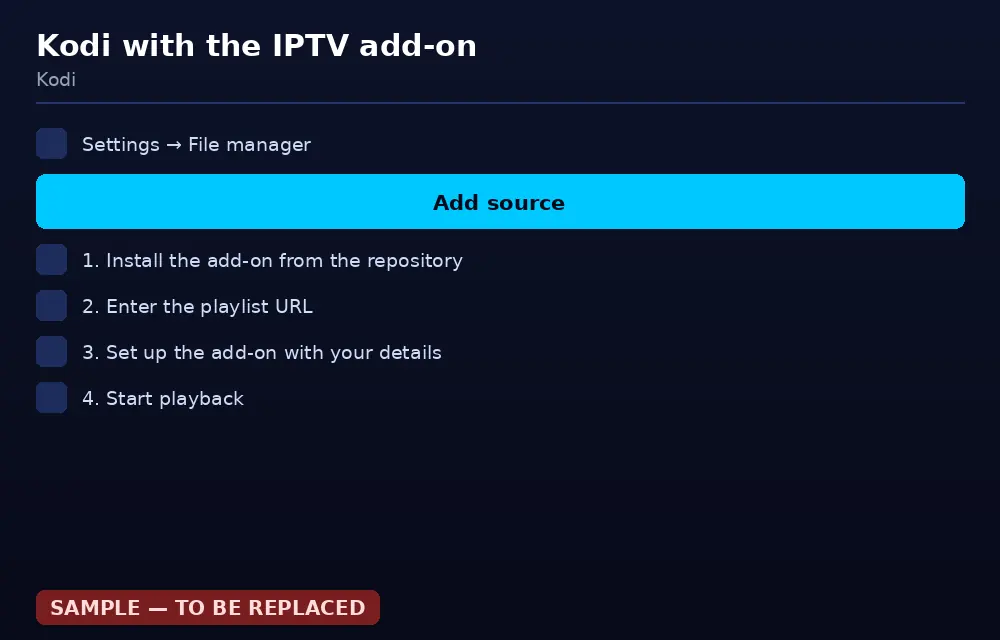
Return to the home screen and open TV. Your configured sources appear: select the one you just created. Kodi's built-in add-on can scan the list on its own.
Wait for the scan to finish — on a slower computer it can take a minute.
- 6
Check playback
Pick a channel and press play. If an add-on configuration screen appears, enter the details from your activation email.
If you hear audio but see no picture, change the video output setting in Kodi's preferences.
Once the scan finishes, the list appears in Kodi's TV section. - 7
Tune it for your computer
For smooth playback, close heavy applications and free up memory. In Kodi's preferences you can enable the cache and reduce the load during a list scan.
If you connect the computer to the TV over HDMI, press F11 for full screen.
If something goes wrong
Before reinstalling anything, work through this table. Problems are listed from most to least common, and the cause is almost always a typo or the connection rather than your account.
| Problem | Likely cause | What to do |
|---|---|---|
| Kodi hangs on startup | Not enough memory or incompatible add-ons | Close other programs, disable unneeded add-ons and restart. |
| The source does not appear under TV | The source is configured incorrectly | Check in Settings › File manager that the path and content type are right. |
| No channels in the list | The scan did not finish | Force a rescan from the TV section and wait for it to complete. |
| Audio but no video | Video output misconfigured | Try «Auto-detect” or a different output in Kodi's preferences. |
| Nothing plays | HEVC codec unsupported | Enable hardware decoding in your computer's system settings. |
| Stuttering | Codec not optimised for the CPU | Close heavy applications or switch on hardware decoding. |
| Kodi updates itself unexpectedly | Untrusted third-party repositories | Remove repositories from unofficial sources and keep Kodi updated from the project site. |
FAQ
What is Kodi and do I really need it for IPTV?
Kodi is a free, open-source media centre that runs on Windows, Linux, macOS, Android and Raspberry Pi. It is not an IPTV app: it is a container in which you install add-ons, including the one that reads a TV8Live playlist. It is the most flexible option, and also the most fiddly.
Is Kodi legal?
Yes. It is free software released under the GPL and can be used purely as a local file player. What is illegal is specific content, not the program. We do not provide protected content without authorisation: we distribute only channels and VOD we hold the rights for.
How do I install the IPTV add-on?
Open Kodi's settings, go to File manager and choose «Add source”. Enter the playlist address provided by TV8Live as the path, set the content type to «MPEG TS” and give the source a name. Then open «TV” and select the source you just created.
Why does Kodi freeze or crash?
It happens often on systems with little memory. Close everything else, free up memory and use a lighter build of Kodi. On a television, Kodi runs on the computer and the computer connects over HDMI.
Is Kodi supported by TV8Live?
No: it is an independent project. TV8Live provides the login details; for Kodi-specific issues go to the project community. If you want a faster route, watch through our online player.
Next step
If you do not have an active subscription yet, the 24-hour €1 trial gives you immediate access with nothing charged required. If you would rather install nothing, the TV8Live online player runs in your browser. For anything else, start with the FAQ.